Elementor vs a Custom WordPress Theme: Which Should You Choose?
Elementor wins on editability, custom themes win on speed and longevity. Here's how to tell which trade-off is right for your business.
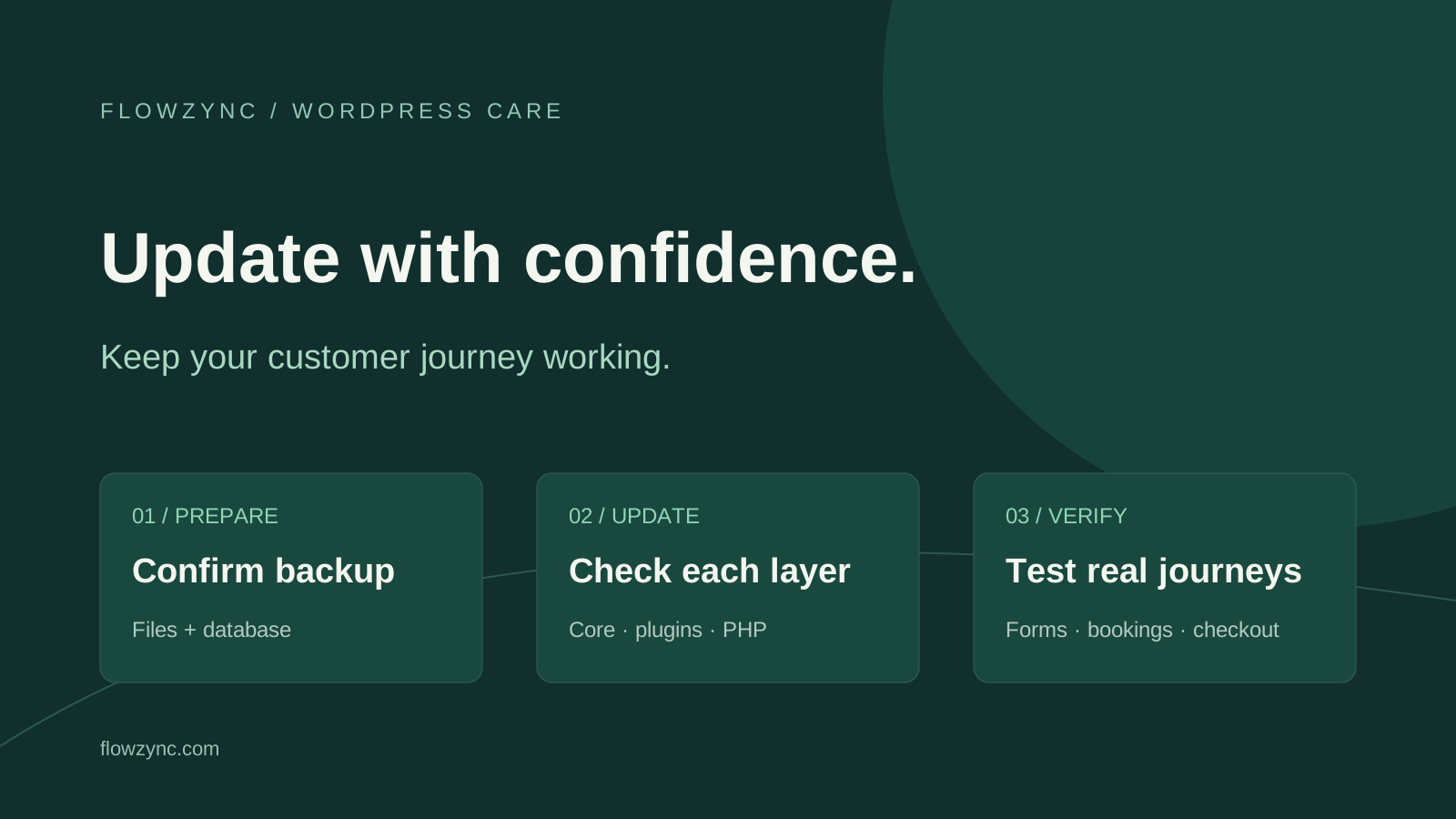
A security update is important, but a successful installation is only the first check. Your website also needs to keep accepting enquiries, bookings and orders afterwards.
WordPress released 7.1.4 on 28 October 2026, addressing several security issues and recommending prompt updates. That makes safe updating a timely concern for small businesses today. This guide, published on 30 October 2026, explains what to check and how to respond if an important feature stops working. It does not suggest that the security release itself causes the problems described below.
A homepage loading normally does not prove that its software is current. Confirm the installed WordPress version in the dashboard and check available updates. If automatic updates are enabled, verify the result rather than assuming the job finished.
The October core release addresses issues including an upgrade-process weakness and stored cross-site scripting. You do not need to reproduce a vulnerability to act on the vendor's recommendation. Record your installed version and follow the official release guidance or ask your maintenance provider to confirm the relevant patch.
For businesses using older branches, check the official backport information and plan a supported upgrade path. Avoid using a development beta as a shortcut for a production website.
Solution: confirm the backup before making changes. A useful backup includes the database and website files. Check when it was created, where it is stored and who can restore it. A backup notification is less useful if nobody knows how to recover the site.
For a busy business, record the update time and the last known working state. Keep the hosting contact and developer details available. This gives the person investigating a failure a concrete starting point instead of a vague report that the website “looks different.”
Ask for urgent help if you cannot establish a safe update procedure; do not leave a recommended security fix pending indefinitely while waiting for a perfect redesign or maintenance window.
Solution: check PHP separately with your host. WooCommerce published a PHP security advisory on 21 October 2026. Its guidance makes clear that a WordPress or WooCommerce application update does not fix those separate PHP issues.
You can inspect the reported PHP version under Tools → Site Health → Info → Server. Ask the host whether the relevant patched release is installed. A major/minor version label alone may not establish the patch status, especially when a host supplies its own patched build.
Do not switch PHP versions blindly on a live store. Confirm the compatibility of your application, theme and extensions, and agree on the update plan with whoever manages the server.
Solution: test the customer journey. Before the change, write down the actions that matter to your business. Repeat them afterwards and record the result.
| Business action | What a useful check confirms |
|---|---|
| Request an enquiry | The form validates, submits and creates the expected record |
| Receive a notification | The intended inbox receives the test message |
| Book an appointment | The booking link opens the correct calendar and confirmation flow |
| Browse on a phone | Navigation, text and primary buttons remain usable |
| Place a store order | Checkout, payment status and the order record agree |
Use clearly identified test details and avoid putting unnecessary customer information into screenshots or support tickets. A button animation or success message does not establish that a CRM record or notification arrived.
If enquiries are the weak point, our guide to contact forms that are not sending emails provides a focused next step.
Solution: reproduce the issue on staging. WooCommerce recommends a current backup and a staging test before updating wherever possible. Use a separate test environment with appropriate payment test credentials, and keep its emails and integrations from reaching real customers.
Test products, cart, shipping, tax and payment behaviour relevant to your store. Check the resulting order and notification, not only the final page. Follow your payment provider's instructions for sandbox testing; do not experiment with payment settings on the live store.
If a conflict is suspected, compare the affected feature with the plugin and theme configuration on staging. Change one variable at a time so you can explain what changed the outcome. A store-wide plugin shutdown on production can create a second problem while you investigate the first.
Solution: establish whether the update is still running before intervening. Record the exact message and ask the host to check the update state and relevant logs. Repeatedly pressing Update is not a diagnosis.
WordPress documentation explains that interrupted updates can leave a maintenance file behind. Removing that file is appropriate only after confirming the update is no longer running and following the documented recovery procedure. If file access is unfamiliar, ask the host or developer to handle it.
For an error after a change, give support the time, affected URL and the change made. Keep debug output out of public pages: it can reveal information visitors do not need to see.
Solution: account for everything received since the backup. A database restore can roll back business activity as well as broken settings. Preserve current data and discuss how recent orders, customers and enquiries will be retained before authorising recovery.
Similarly, do not copy an old staging database over a live store simply because the design looks correct. Changes to website files and changes to live business records require different handling. The right recovery depends on the system and the timing of the failure.
Keep a concise record of the version checked, backup time, changes applied and customer journeys tested. Include any unresolved issue and its owner. That turns “we updated the website” into a task somebody can verify.
Need help planning the update or investigating a broken enquiry flow? Explore WordPress website services, WooCommerce development or maintenance and support. Share the symptoms through our contact page; do not send passwords or customer records in a public message.
Sources checked on 30 October 2026. This is a practical maintenance checklist, not a security audit or a claim that a particular website is compromised. Release-specific instructions can change; confirm the current official guidance before updating.
No. WordPress core, plugins, themes and the hosting environment are separate layers. Confirm the relevant security updates at each layer rather than assuming that one update covers everything.
Check the pages and actions customers rely on: navigation, forms, booking links and mobile layouts. For a store, verify products, cart, checkout, order records and notifications using an appropriate staging test.
Do not restore blindly. New orders or enquiries may have arrived since the backup. Preserve current data and ask your host or developer to plan a recovery that accounts for the gap.

Elementor wins on editability, custom themes win on speed and longevity. Here's how to tell which trade-off is right for your business.
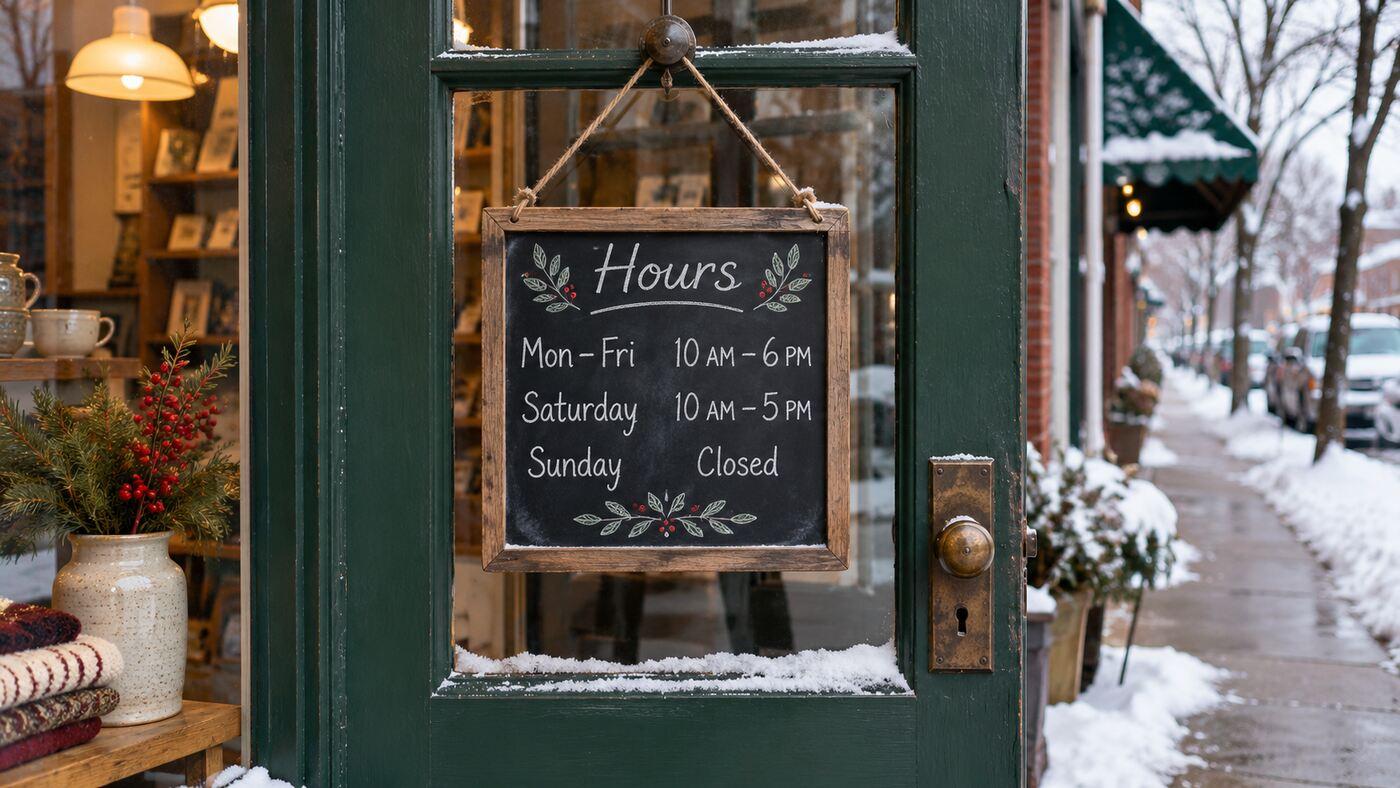
Set special hours on Google Business Profile and coordinate your website, booking calendar, and voicemail before a holiday closure.
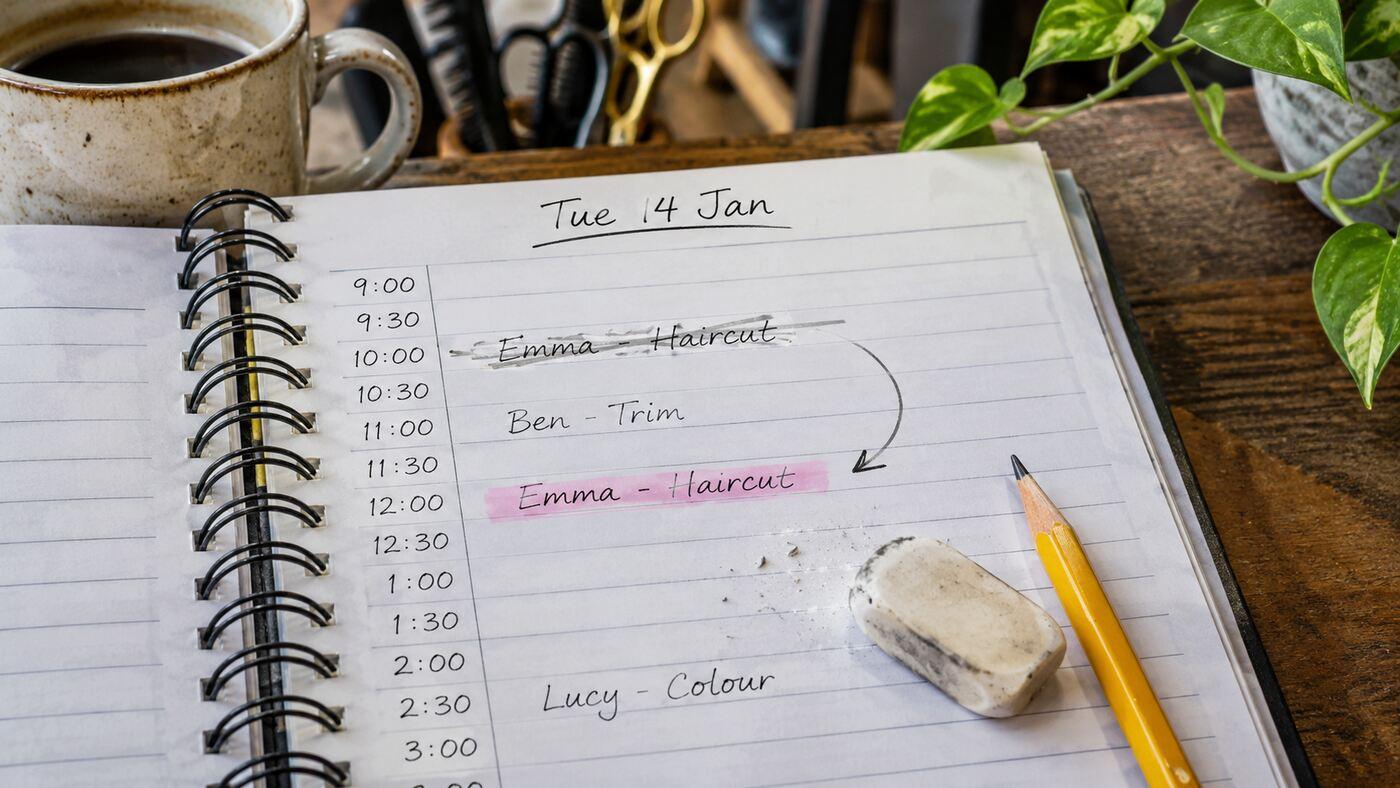
Test a GoHighLevel appointment reminder workflow so moving or cancelling a booking does not leave a stale reminder queued for the original slot.
Everything we write about, we build daily. Book a free call and let's apply it to your project.
Tell us about your project